New / For Windows 10 and 11
Version 1.0.11 · 64-bit · Free
Next Windows All your virtual desktops, at a glance. Organize them, drag windows between them, capture or record the screen with one key.
Press Win+Tab, the panel does the rest


Win+Tab panel
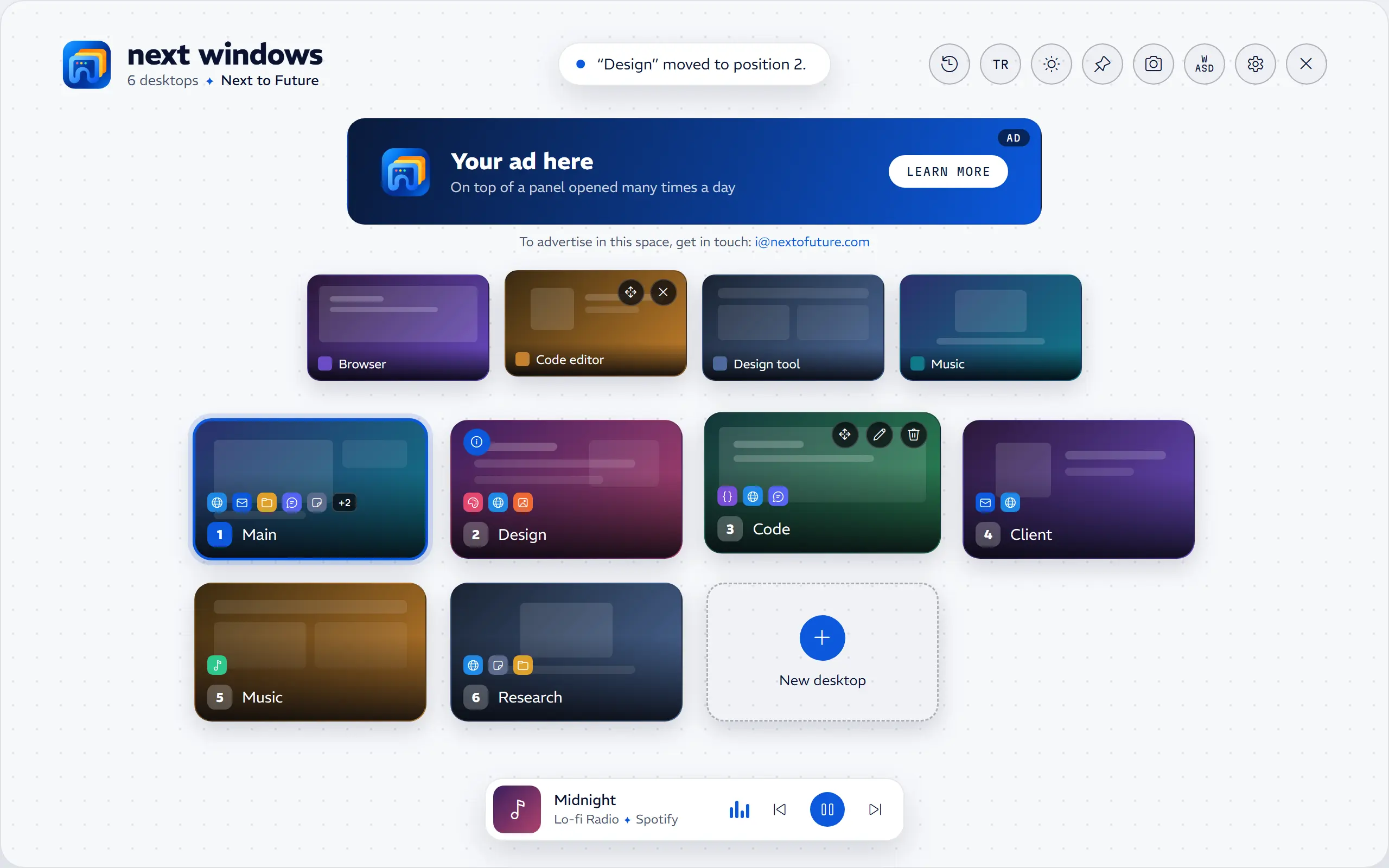
Every desktop in one full-screen panel, with previews and its open apps. Switch with a click, add, rename and drag to reorder.
01 Features
Your Desktops, Finally in Order
Everything that makes Windows virtual desktops genuinely useful, in one panel.
- 01
Win+Tab Panel
Every virtual desktop on one screen, with previews. Click, press 1–9, or hold Win and press Tab to step like Alt+Tab.
- 02
Easy Organizing
Add as many desktops as you like, remove them, click a name or press F2 to rename, drag cards to reorder.
- 03
Move Windows
Drop an open window onto a desktop card to send it there; close it with ✕.
- 04
Open Apps
Every desktop card shows the icons of the apps open on it, so you know where everything is at a glance.
- 05
Now Playing
The song, artist and cover at the bottom of the panel; previous, play/pause and next in one click.
- 06
Multi-Monitor
A panel on every screen, each listing the windows on that screen.
- 07
Keyboard Friendly
Arrows, Enter and 1–9 to jump; Ctrl+Alt+Arrow switches without the panel.
- 08
Desktop Notes
Add a short note to any desktop; desktops with a note stand out at a glance, and each note shows when it was last edited.
- 09
Lock the Layout
One key guards against accidental deletes and moves.
- 10
Updates Itself
New versions install only after their signature checks out; if you like, it waits in the tray from sign-in.
- 11
Release Notes
See what changed in every version from the top right of the panel.
- 12
Two Themes, Two Languages
Dark and light themes, English and Turkish built in.
Win+Tab · Ctrl+Alt+Space · PrtSc · Ctrl+C · Ctrl+S · F2 · Esc · Ctrl+Z
Preview · Drag · Drop · Rename · Reorder · Take Notes · Lock · Draw · Copy · Save · Record · Listen
01 / 01 Screenshots and recording
Capture and Record, One Key Away
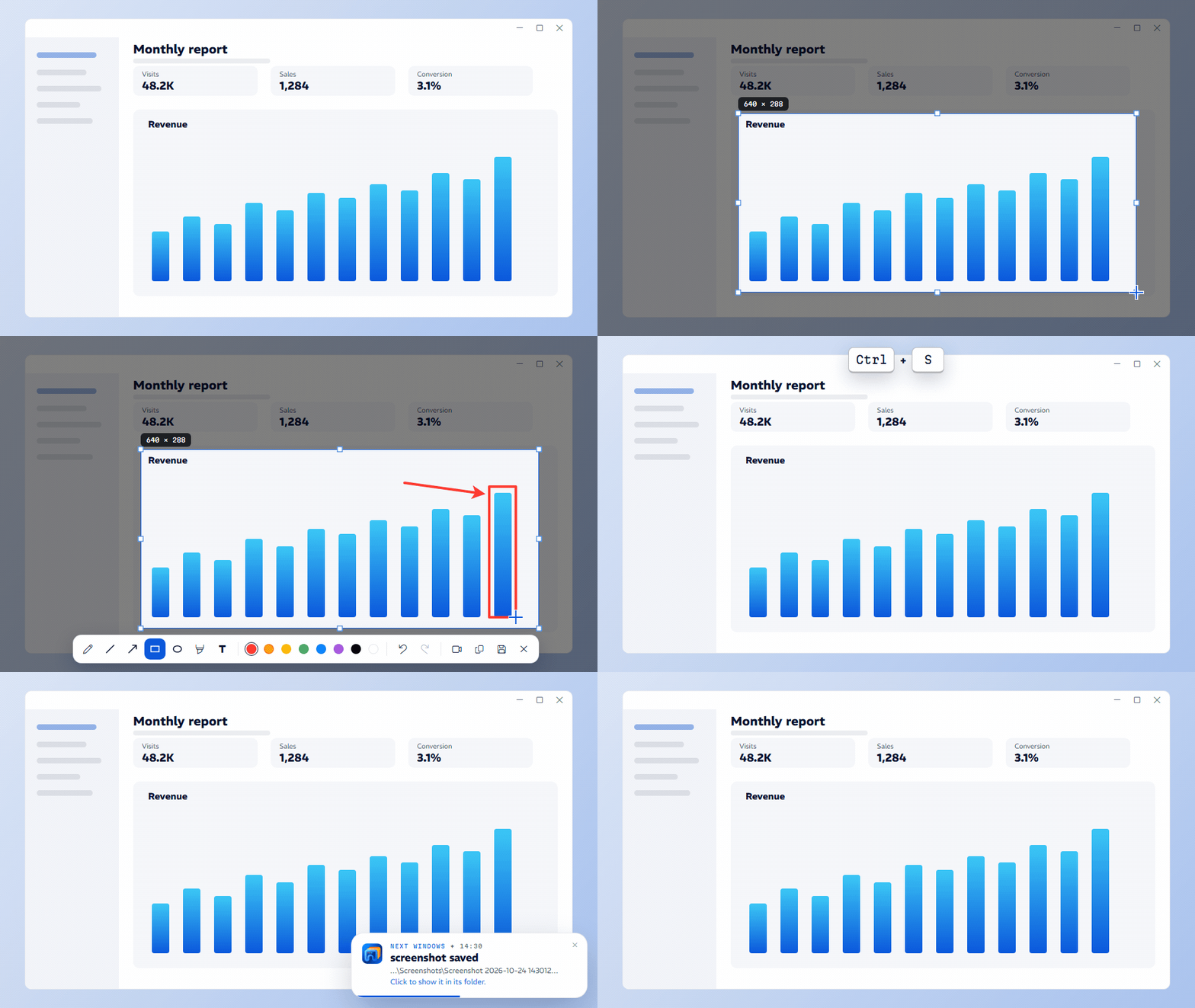
Press PrtSc and the screen freezes. Pick an area and mark it up with a pen, arrows, shapes, a marker and text, or switch to recording in one click.
- 01
Freeze and select
PrtSc freezes the screen. Drag to select an area, then move it or resize it by its edges.
- 02
Draw on it
Pen, line, arrow, rectangle, ellipse, marker and text in eight colours. Hold Shift for straight lines, squares and circles.
- 03
Copy or save
Ctrl+C copies to the clipboard, Ctrl+S saves a PNG to the folder you chose. Click the notification to open its folder.
- 04
Screen recording
Built in: pick an area and press the record button on the bar. Resolution, frame rate, computer sound and microphone come from the settings; the recording is saved as an MP4 to the folder you chose, and you can trim its start and end when it stops.
- 05
Your choice
Using another tool? Switch screenshots off and PrtSc goes back to Windows.

03 Shortcuts
Everything Is One Key Away
Move between desktops, organize them, and capture or record the screen without touching the mouse.
Anywhere
- Win + Tab
- Open / close the panel
- Ctrl + Alt + Space
- Open / close the panel
- Win + Tab / Shift + Tab
- With Win held, step through desktops; let go to switch
- Ctrl + Alt + ← → ↑ ↓
- Switch desktops without the panel
- Win + Ctrl + +
- New desktop
- PrtSc
- Screenshot / recording (while recording: stop)
In the panel
- ← → ↑ ↓ Enter
- Navigate, switch
- 1 – 9 0
- Jump to that desktop
- N Del F2
- New / Delete / Rename
- I
- Note on the selected desktop
- L T D S
- Lock / Theme / Language / Screenshot and recording
- Esc
- Close
While capturing or recording
- Drag
- Select an area; then move it or resize it by its edges
- Wheel or Ctrl + + / −
- Brush width (text size while typing)
- Shift
- Straight lines and arrows (45°), squares, circles
- Ctrl + Z / Y
- Undo / redo
- Ctrl + C
- Copy to the clipboard
- Ctrl + S
- Save as PNG to the folder you chose
- Space / Enter
- In the trim window: play / save
- Esc or Right click
- Close
04 Privacy
Previews stay in your computer's memory; screenshots and recordings go only to the folder you chose. Nothing is sent anywhere, and no usage data is collected.
01
Memory only
Desktop and window previews are never written to disk or sent anywhere.
02
Your screenshots and recordings
Written to the clipboard only when you copy, and to your chosen folder only when you save or record; sound and microphone only if you switch them on.
03
No tracking
No usage data, identifiers or tracking cookies are collected.
04
Minimal network
It connects only to fetch the ad list, ad images and updates.
05 Installation
Four Steps. That's It.
Setup takes a minute, and uninstalling leaves no files behind.
01
Download
Download and run NextWindows-Setup.exe.
02
Allow it
If Windows says it “protected your PC”, choose More info › Run anyway.
03
Install
Confirm the administrator prompt and click Install.
04
Win+Tab
Press Win+Tab. Your desktops are right there.
System requirements
- 01
Windows 11
23H2 or later, 64-bit. Every feature.
- 02
Windows 10
2004 or later, 64-bit. Every feature; screen recording needs Windows' media components.
- 03
Admin Rights
Needed to install. Settings › Apps › Next Windows › Uninstall removes it without a trace.
06 For advertisers
The Top of a Screen Opened Many Times a Day
The Next Windows panel carries a banner space at the very top. Ads run per language and within a date range; no tracking, no personal data.
[email protected]Free · Windows 10 and 11
Press Win+Tab. That's It.
Download Next Windows and keep your desktops in order for good.