New / For coding agents
Version 1.0.0 · Windows · macOS · Linux · Free
Next Notify Know the moment your agent finishes, asks for permission or waits for you. Click the notification to jump right back.
Let the agent work, get on with yours
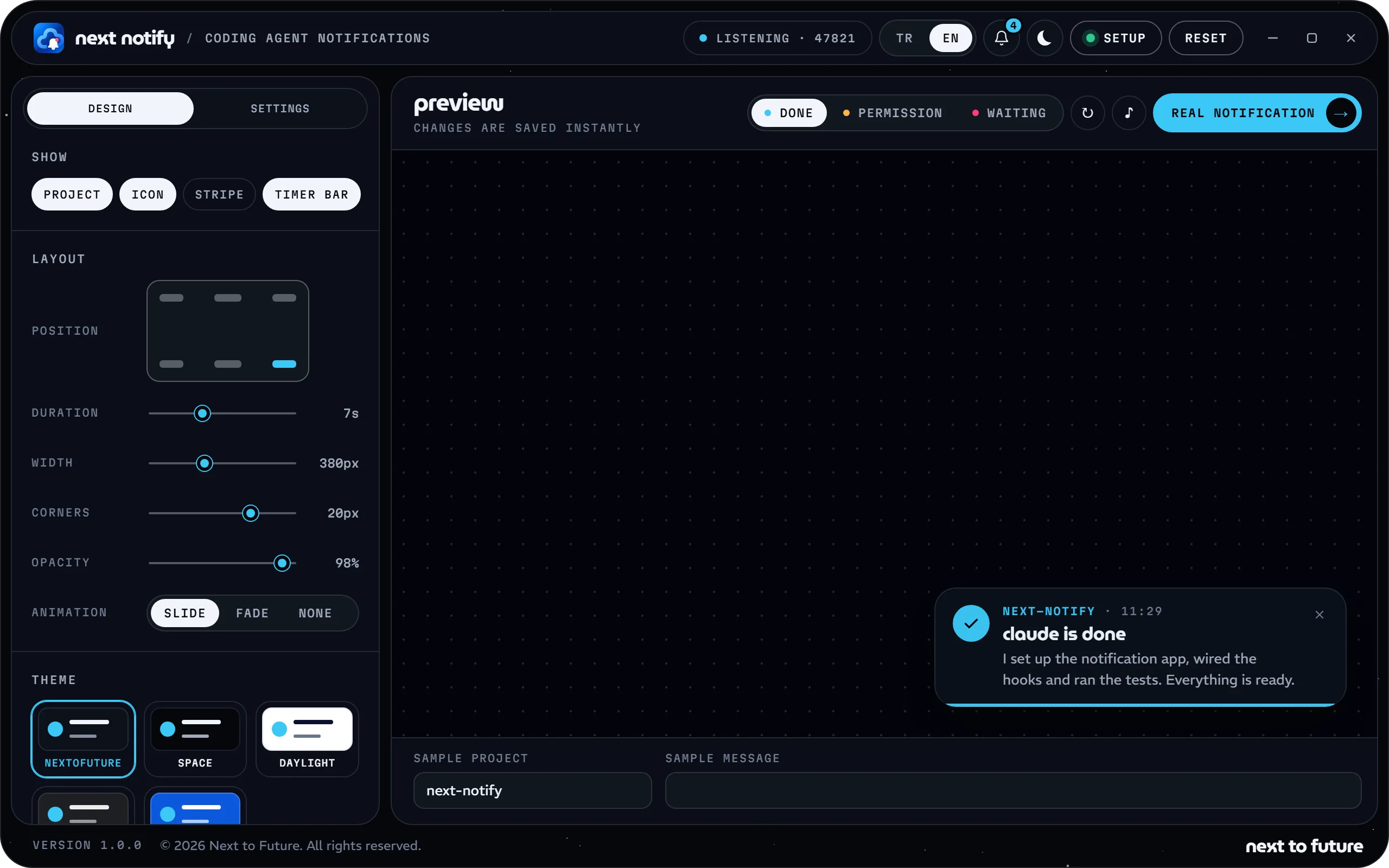
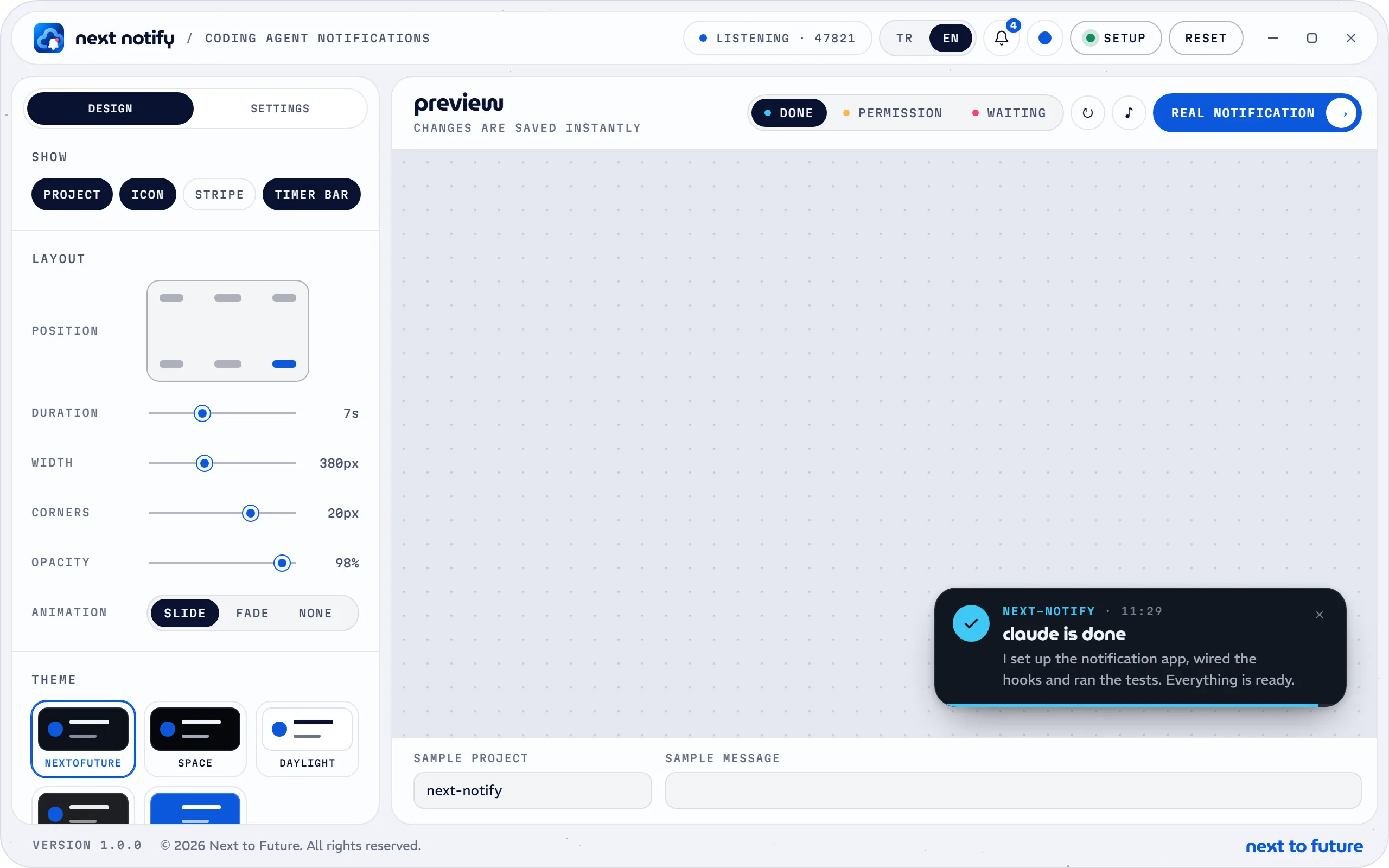

Settings window
Theme, position, duration, fonts and sounds; every change shows up in the preview right away and is saved on its own. Dark and light themes, English and Turkish built in.
01 Features
Stop Watching the Terminal
Move on to something else while your agent works through a long task; the notification arrives the moment it needs you.
- 01
Three Moments, Three Notifications
When a task is done, when permission is needed and when the agent is waiting for you, each with its own colour, icon and sound.
- 02
Five Agents, One App
Claude Code, Codex, Cursor, Gemini CLI and OpenCode share the same design, settings and sounds.
- 03
Click to Return
Click the notification to go back to wherever the agent runs: the project's window in your editor or the terminal. Detected automatically.
- 04
What Happened, at a Glance
The agent's name, the project folder and a short summary of the last reply on the card; you choose how long the summary is.
- 05
Your Design
Five ready-made themes, or your own colours for the background, title, text and border.
- 06
Any Corner You Like
Six positions; duration, width, corner radius, opacity and a slide or fade animation.
- 07
A Sound for Every Event
Built-in synthesized sounds, your system sounds or any audio file, at the volume you like.
- 08
Your Own Words
Rewrite the title and message with variables such as {agent}, {project} and {summary}.
- 09
Stay Until Dismissed
Permission notifications stay on screen until you close them; turn it on for the other events with one click.
- 10
Never Steals Focus
Notifications open on the screen your mouse is on and stack up, without taking focus from the window you're typing in.
- 11
Quietly in the Tray
Starts at login and waits in the tray or menu bar; pause and resume notifications with one click.
- 12
Updates Itself
Downloads new versions in the background, checks their SHA-512 hash and installs them quietly once the settings window is closed.
Claude Code · Codex · Cursor · Gemini CLI · OpenCode · VS Code · Antigravity · Terminal
Done · Permission · Waiting · Click · Return · Listen · Customize · Pause · Mute · Resume
01 / 02 Notification card
Every Event, Its Own Card
When the agent sends an event, a card appears in the corner of the screen with the project, title and summary together. Change the look in the settings window and see the result right away.
- 01
Done
Arrives with a summary of the last reply when a task is complete, and closes on its own after a few seconds.
- 02
Permission
Arrives when the agent needs your approval for a command or a file, and stays on screen until you close it.
- 03
Waiting
Reminds you when the agent is waiting for your answer. Claude Code sends this event.
- 04
Per-event settings
Each event has its own title, message, icon, accent colour and sound; turn off any event you don't need.
- 05
Live preview
Every change shows up in the preview right away and is saved on its own; the Real notification button shows the card on your screen.
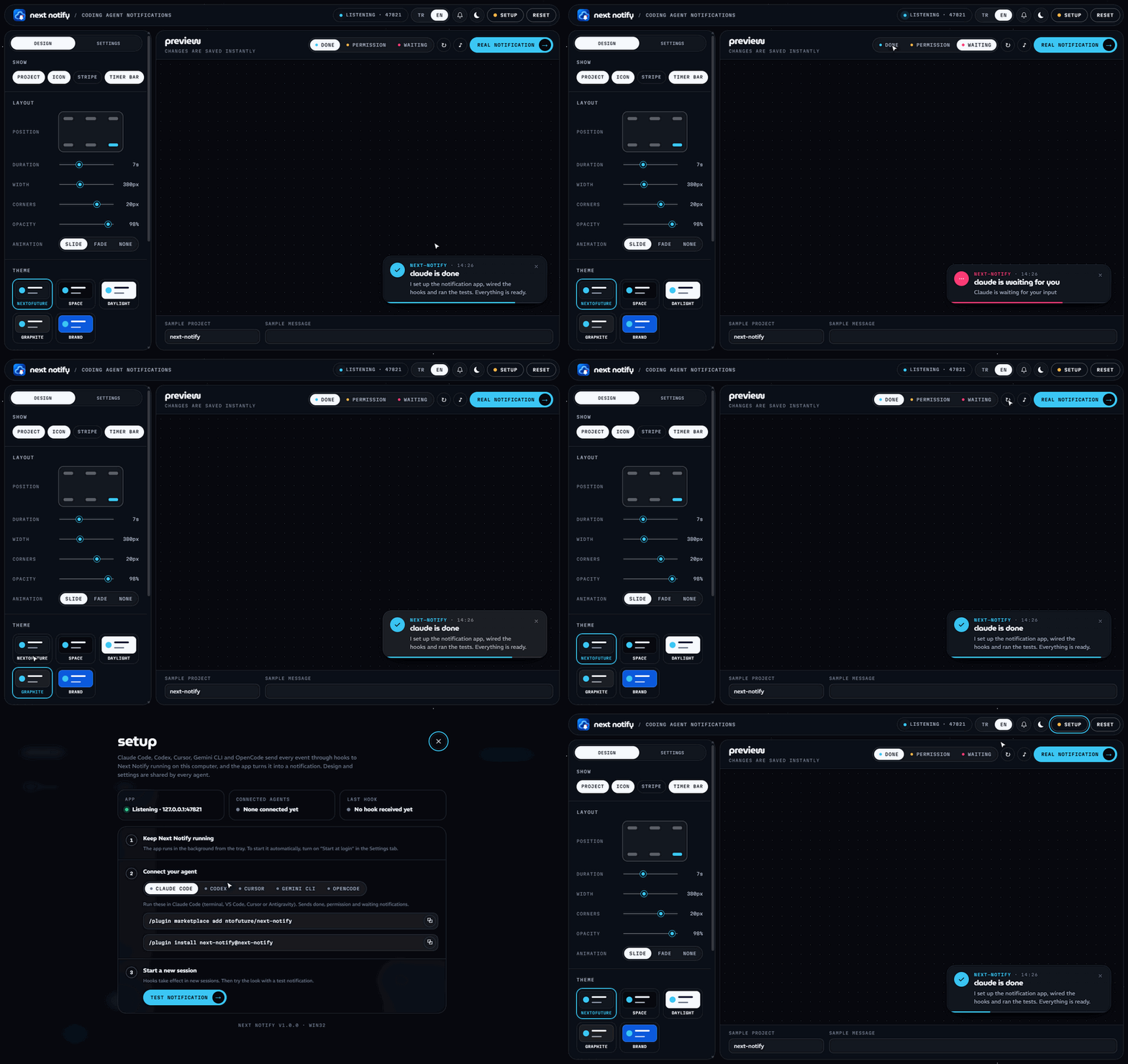
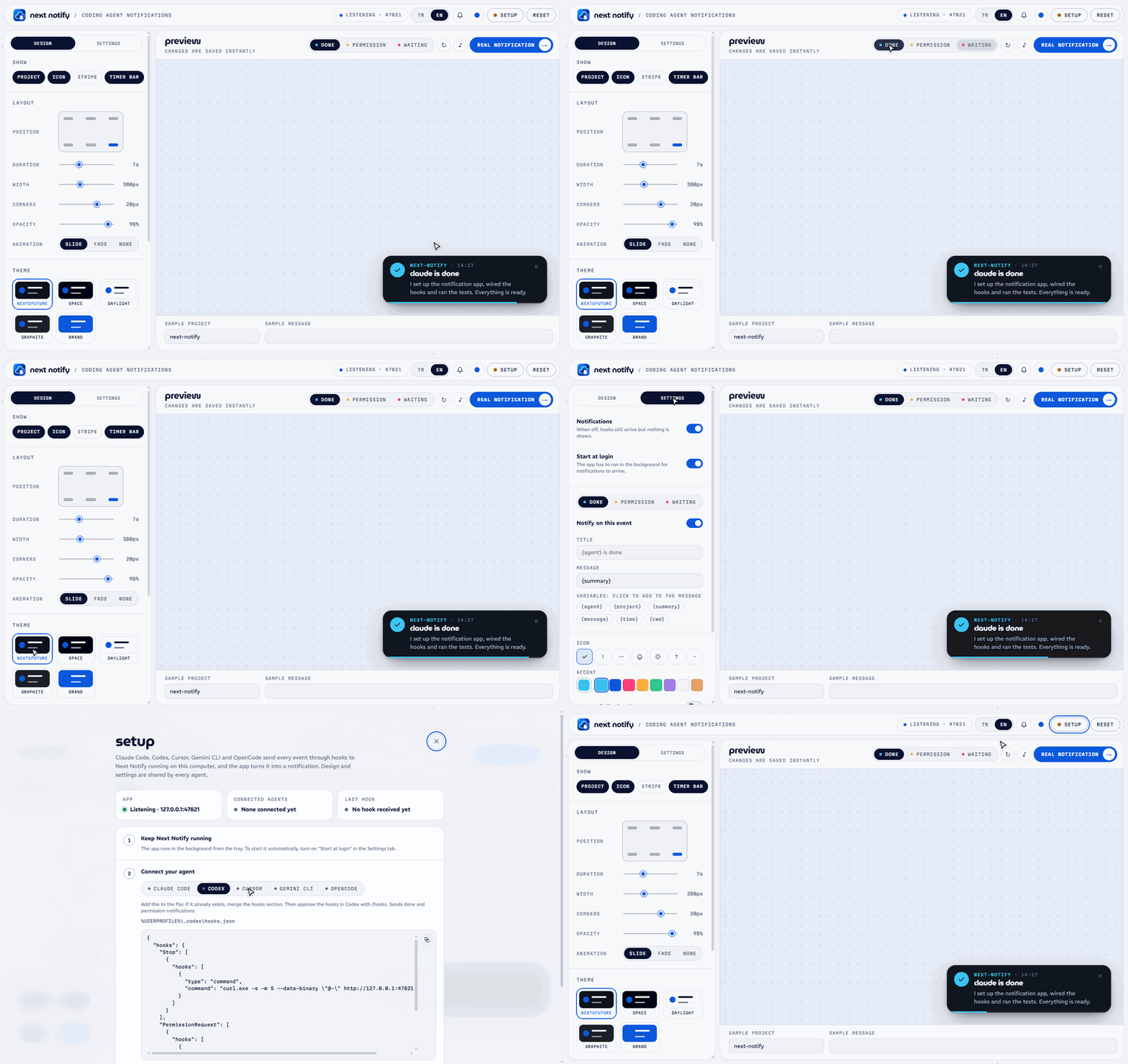
02 / 02 Setup panel
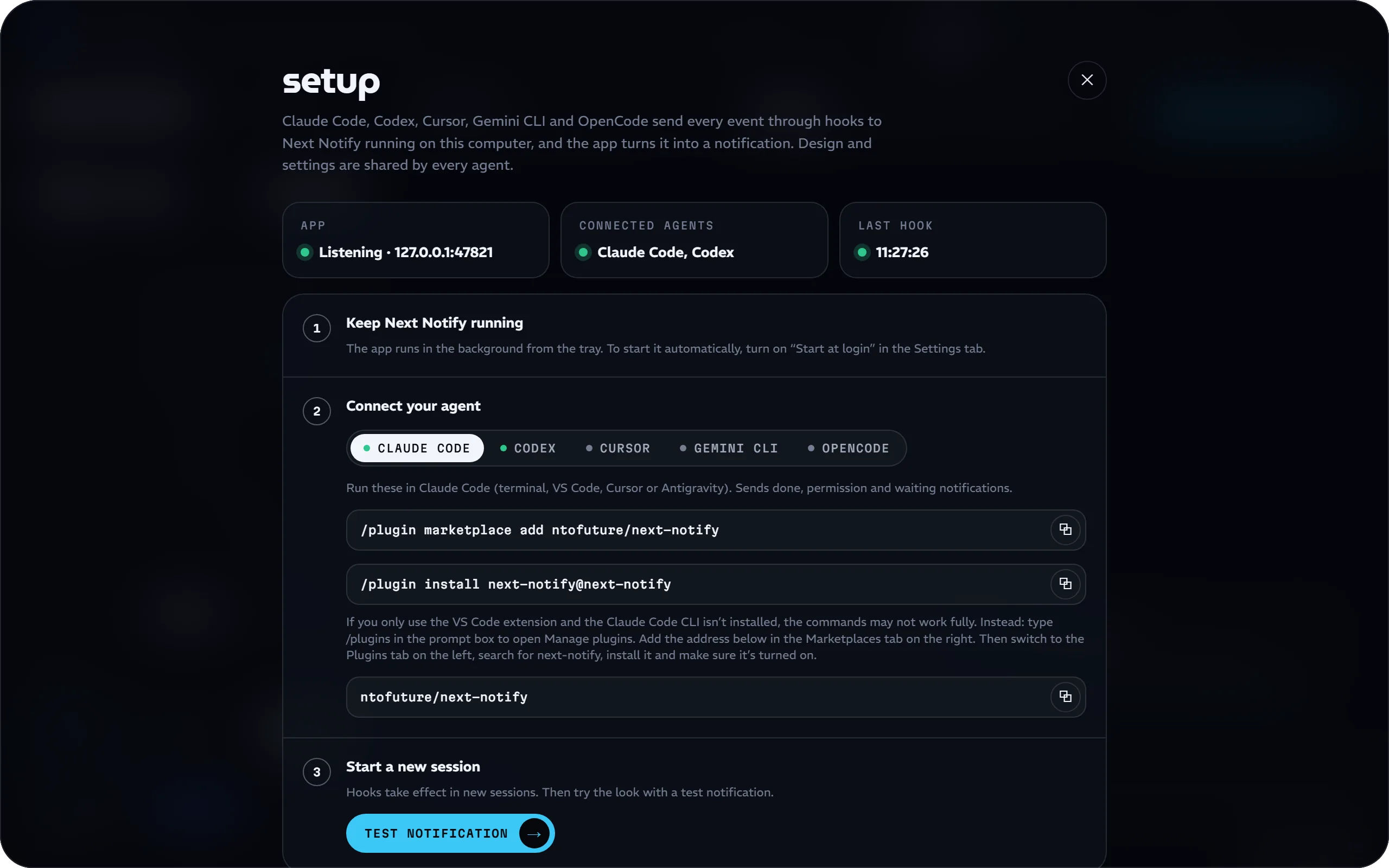
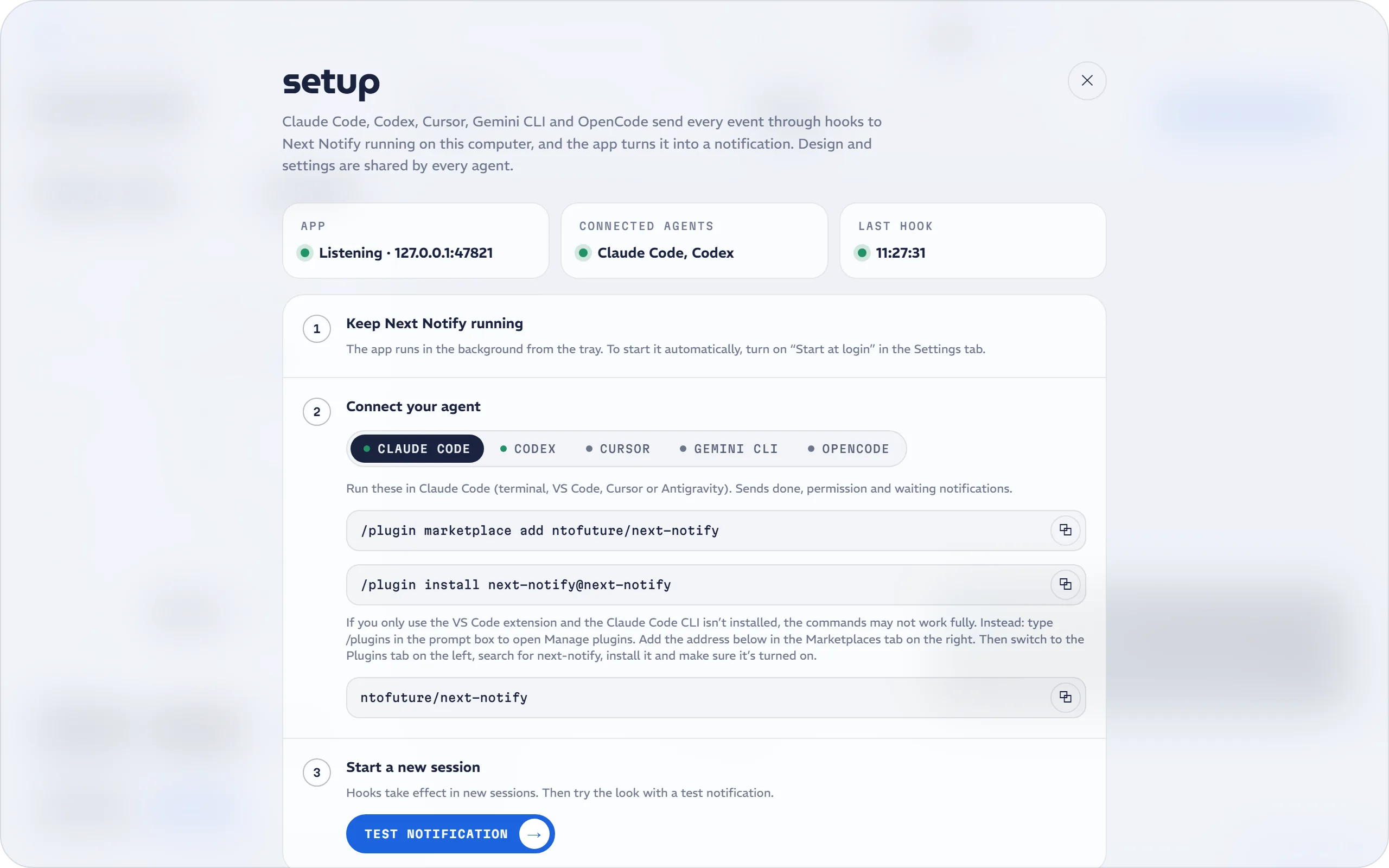
Connected in a Minute
For every agent, the setup panel shows the right command or file content for your system with a copy button, along with whether the app is listening and which agents are connected.
- 01
Claude Code
Run /plugin marketplace add ntofuture/next-notify and /plugin install next-notify@next-notify; you get done, permission and waiting notifications.
- 02
Codex
Add two hooks to ~/.codex/hooks.json and approve them in Codex with /hooks; you get done and permission notifications.
- 03
Cursor
Add a single hook to ~/.cursor/hooks.json; Cursor only reports the end of a task.
- 04
Gemini CLI
Add it to the hooks section of ~/.gemini/settings.json; you get done and permission notifications.
- 05
OpenCode
Drop a small plugin file into ~/.config/opencode/plugins; it loads at startup and sends done and permission notifications.
- 06
Recent events
Every hook that arrives is listed with the agent's name; when a notification doesn't show up, this is where you see why.
03 Reference
Events, Commands, Variables
Which agent sends which event, the variables you can use in the title and message, and the commands worth knowing.
Events and agents
- Done
- Claude Code, Codex, Cursor, Gemini CLI, OpenCode
- Permission
- Claude Code, Codex, Gemini CLI, OpenCode
- Waiting
- Claude Code
- Click
- Back to the agent's editor window or terminal
Title and message variables
- {agent}
- Agent name: claude, codex, cursor, gemini, opencode
- {project}
- Project folder name
- {summary}
- Plain-text summary of the last reply (done)
- {message}
- The agent's notification text (permission, waiting)
- {time}
- Time (HH:MM)
- {cwd}
- Full working directory
Commands
- /next-notify:test
- Show a sample notification with your saved settings
- /next-notify:test permission
- Try the permission notification (idle for waiting)
- /next-notify:dashboard
- Open the settings window; starts the app if it isn't running
- /plugins
- VS Code extension only: install the plugin from here
- /hooks
- Approve the Next Notify hooks in Codex
04 Privacy
Next Notify runs only on your computer. Agents hand their events to the app over 127.0.0.1; no content is sent to the internet and no usage data is collected.
01
Local only
The app listens only on 127.0.0.1:47821 and rejects requests that come from web pages.
02
No scripts
The Claude Code plugin is just two HTTP hooks and two commands; no shell scripts run on your computer.
03
Never slows the agent
If the app isn't running, the hooks fail quietly and your agent keeps working.
04
One connection
It goes online only to check for a new version at launch.
05 Installation
Four Steps. That's It.
Install the app, connect your agent, start a new session; Next Notify takes care of the rest.
01
Download
NextNotify-Setup.exe for Windows, NextNotify-Setup.dmg for macOS; the AppImage or .deb package for Linux is on GitHub.
02
Install
If Windows says it “protected your PC”, choose More info › Run anyway; on macOS, right-click the app and choose Open the first time.
03
Connect
Copy your agent's command or file content from the Setup panel in the settings window.
04
Try it
Start a new session and see your first notification with /next-notify:test or the Real notification button.
System requirements
- 01
Windows
Windows 10 and 11, 64-bit. Settings › Apps › Next Notify › Uninstall removes it along with its settings.
- 02
macOS
macOS 12 or later, Intel and Apple silicon. The app isn't notarized yet, so download new versions by hand for now.
- 03
Linux
64-bit AppImage or .deb. The card's transparent corners need a compositor, standard on GNOME and KDE.
- 04
A Coding Agent
Claude Code (terminal, VS Code, Cursor or Antigravity), Codex, Cursor, Gemini CLI or OpenCode.
06 Open source
Open Source, MIT Licensed
Next Notify is MIT licensed; the source code, release notes and Linux packages are on GitHub. Found a bug or missing an agent? Open an issue.
View on GitHubFree · Windows, macOS and Linux
Let It Work. You'll Know.
Download Next Notify and stop babysitting the terminal.